Hello all new users (or maybe some a bit more experienced), and welcome to the community!
A few months ago (okay, maybe a lot of months ago), I made a guide on how to use Sweezy Community. You can view it here. Anyways, this guide covers the more advanced stuff, or stuff I never mentioned before. Here it is:
- How to use Sweezy Community (part 2)

These are some more tips on how to work Sweezy Community.
a. Your Profile  :right_arrow:
You can view your profile by clicking your icon (or profile picture) in the top right corner of your screen. Here you’ll be able to view notifications you have, or view other stuff.

The things like the arrow and heart are filters of what notifications you got (so the arrow means those were the replies and the heart means those were the likes, etc.). Just click on them to view them.
The person on the bottom is your profile preferences. That has a lot of stuff in it, so I’ll get into that later.
b. Searching 
If you click on the magnifying glass next to your profile thing, you should see a search bar. This is pretty simple to use: Just type what you want to search (any user, topic, post, category, etc.) and then click on the first two options (“_ in all topics and posts” or "_ in [category]) if you want to search for posts, and scroll down if you were searching for something else to see the results.
Now, these steps are for the simple search, but there’s also an advanced search.

If you click this button to the right of the search bar, it’ll take you to a new screen. Click on “Advanced filters” to show advanced filters. Here, you can select categories you want to search in, select what tags they might have (I’ll get into tags later), and select the topic status here:
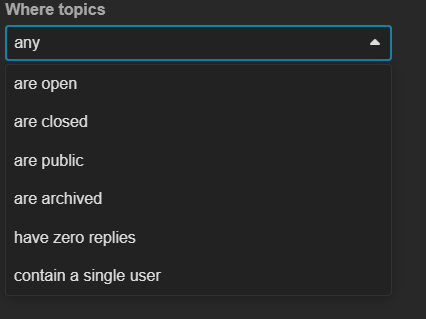
You can also select who it was posted by, and when it was posted.
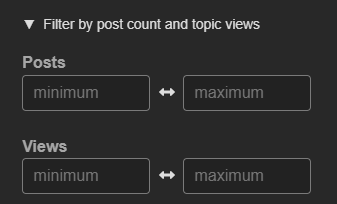
Here you can say how many posts or views you think it has.
c. DMs 
DMs (or direct messages) are, of course, direct messages that you can send to people. They seem simple, and they are, but there are some fairly complicated things about them.
To open DMs with somebody, click on their profile, then click “Chat” on the right.
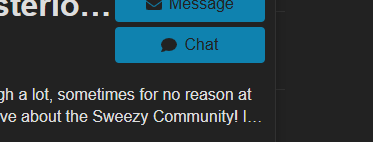
After you get in, you just… chat.
If you click the person’s name at the top, it’ll take you to settings. Here you can change the title, mute it (which means it can’t send you notifications), choose when to send you a notification, and enable threading, which makes a new conversation when you reply to someone.
To make a group chat, just push the plus at the top right corner of the DMs section, and push “New group chat”.
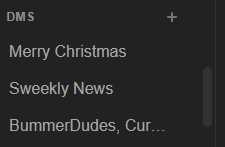
Here you can add users by searching and clicking on them, and then you’ve created a group chat! I really don’t know if I needed to explain this, but it’s here just in case!
d. Tags 
There really isn’t much to know about tags, but I’ll tell you all that there is.
A tag is like something that your topic is related to. It’s optional, but you can add one if you want. To choose a tag, click the “optional tags” button right below the title of your topic as you’re making it. You can choose one of the current ones, or make your own! And… that’s it!
e. Groups (part 2) 
Groups are things you can join when you share the same interest as everyone in that group. Then they can send personal messages to each other.
To access groups, click on “More” on the top left of your screen. You may have to scroll up to see it. After that, click on “Groups”. This will take you to a screen showing all the current groups.
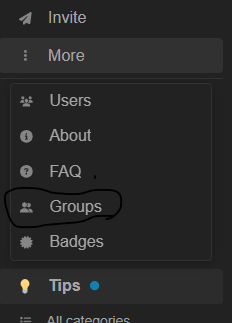
To join a group, just scroll to the group you want and click “Join”. If you’re in a group you’d like to leave, click the “Leave” button, which will replace the “Join” button when you click the “Join” button.
To join the A.R.B.A (the Anti Rule Breaker Agency), you’ll have to send a request explaining why you want to join and how you will help. After a member reviews it, they can choose to add you or not.
To message your group, click on the group and press the “New Message” button on the right of your screen, then make a title and… uh… post. And… that’s it!
- Advice for Higher Trust Levels

This section is a guide for Regulars and Leaders.
a. Regulars
I know a lot of users here are regulars now, and some of you may be wondering what you are able to do, or just how to do them, so I’ll explain some of them.
Once you’re promoted to Regular, you get things like more votes, more likes per day and the ability to change a topic’s name or recategorize it. Now remember, you were given these abilities for a reason, so don’t go around messing with other people’s topics. Use your powers only when needed.
To edit a topic’s name or category, hover your mouse (or press the title name if on mobile) over the title name, and a pencil icon should appear.

Click the pencil, and from there you should be able to change the name or category.
b. Leaders
If you were just promoted to Leader, there are a lot of new things you can do. Remember, like Regulars, you should use your powers only when needed. Don’t use them to spam or mess things up.
The first thing is that you can edit other people’s posts. Just go to the bottom corner of their post and click the pencil icon to do that. You can also turn someone else’s post into a Wiki, meaning anyone can edit it. To do this, click the three dots in the corner of that person’s post,

click the wrench,

and click “Make Wiki”. You may also notice that you can “Make Official Notice”. If you click that, you can make a note appear above that post. I don’t know for sure, but I think that alerts the mods, someone correct me if I’m wrong.
The next thing you can do is edit the topic’s status completely. Scroll to the bottom, and click the wrench on the side.
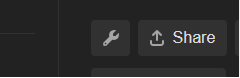
Click on it, and from there, you can open/close the topic (prevent TL3 and under from replying), list/unlist it (make it only accessible with a link or by searching), or archive/unarchive it (make it… uh… archived). You can also select posts to merge into a different topic. That’s it!
- Profile

This section is about how to adjust things in your profile.
a. Summary
If you click on your icon in the top right corner of the community then go all the way down to the person icon and click it, you’ll se a few things you can go to. If you click on “Summary”, it will give you a summary of your profile. The people who’ve liked you the most, the people you’ve replied to the most, total likes received, days visited, etc.
b. Activity
There’s not really much to this one. If you go back and click “Activity”, then you can see your posts, topics, and a bunch of other stuff.
c. Preferences
If you go to your account and click “Preferences”, it takes you to an interface with a lot of options. It will most likely take you to “Account”.
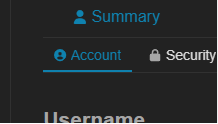
From here you can change your pfp, email, name, title, or flair. If you go back to the top, you can press “Security”, which takes you to another screen. You can edit your password, add a passkey, enable two-factor authentication, or see recently used devices.
If you go back to the top and click “Profile”, you can edit your bio, timezone, location (which I don’t recommend doing), profile header, card background, and birthday so we can celebrate it!
If you go to Emails, then you can choose when Sweezy Community emails you (or if it does at all).
Go to Notifications, and you can choose when you get notifications.
Go to Tracking, and you can choose when a topic is considered new, when a topic is tracked (I talk more about that in part 1), and when a topic is muted.
Go to Users, and you can choose to ignore or mute users.
Go to Interface, and you can choose the color of the background, text size, language, and other things.
There are a few other things, but I don’t fully know how those work, so you’ll have to ask someone else.
And that’s how to navigate through your profile!
- A Friendly Reminder
Okay, I know I’ve mentioned this in my last guide, but I want to remind everyone not to ping the admin Sweezy unless you have to. That’s all!
- Questions?

That’s all for part 2 of the guide! If you have any questions or want to correct something in my guide, DM me, and I will reach out to you as soon as I can! I hope you learned something from this guide, this took me months (well, weeks, if you don’t count the long period of time in which I forgot about this topic), and… yeah! Bye!